Your First Days on an HPC Cluster: A Primer for Statisticians
Most statisticians meet a compute cluster the same way: someone sends a two-page guide with lines like “10 CPU nodes, each 2×64-core EPYC, 512 GB RAM, NVMe /tmp” and a handful of commands to copy. The commands work, but nothing explains why. This post fills that gap: what each piece is, why the rules exist, and how to check every claim on your own cluster.
It assumes you are comfortable with R and a terminal, and nothing about hardware or system administration. Cluster names, hostnames and paths below are placeholders (mycluster, netid, cluster.example.edu).
1. The Mental Model
A cluster is a set of separate computers in a server room, linked by a fast network. Each computer is a node. You never sit at any of them.
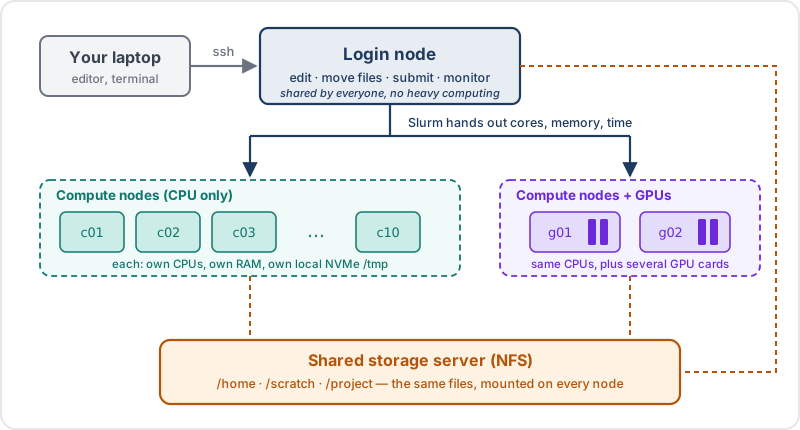
Anatomy of a typical cluster. You only ever log in to the login node; Slurm gives you pieces of the compute nodes; every node sees the same shared storage.
Four moving parts:
| Part | What it does |
|---|---|
| SSH | the encrypted connection from your laptop to the login node |
| Slurm | the scheduler: a bookkeeper that hands out cores, memory and time to jobs |
| Shared filesystem (usually NFS) | one storage server whose folders every node mounts, so all nodes see the same files |
| Modules (usually Lmod) | make one chosen version of R, Python, compilers, … available on demand |
HPC (High-Performance Computing) is the umbrella term for all of this.
Login node versus compute node
On many clusters the hardware is identical. What differs is the role:
| Login node | Compute node | |
|---|---|---|
| How you get there | ssh or VS Code | only through Slurm (srun, sbatch) |
| Shared by | every logged-in user at once | only you, on the cores Slurm gave you |
| Use it for | editing, files, git, rsync, submitting and watching jobs | R, Python, notebooks, simulations |
| Resources guaranteed | none | exactly what you asked for, enforced |
screen, ls, squeue — belong there. Think of the login node as a library’s front desk where you fill in request slips, and the compute nodes as reading rooms you book through the desk.2. Inside a Node: Reading the Hardware Line
A typical spec line reads: 10 CPU nodes, 2 GPU nodes; each 2×64-core EPYC 7763, 512 GB RAM, 2 TB NVMe /tmp. “10 CPU” means ten CPU nodes — computers without graphics cards — not ten processors. Names like c[01-10] are Slurm shorthand for c01, …, c10.
Sockets, cores and hardware threads
“CPU” is used at three levels, and you need to know which one a sentence means:
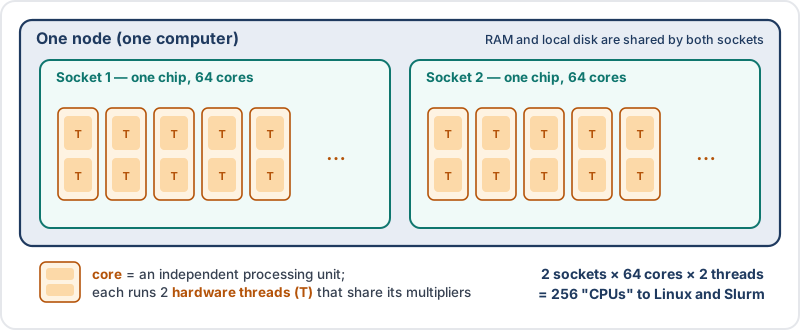
Socket → core → hardware thread. Linux and Slurm count the threads.
| Level | What it is | Example node |
|---|---|---|
| Socket | the physical chip (e.g. an AMD EPYC 7763) | 2 |
| Core | an independent processing unit inside the chip | 2 × 64 = 128 |
| Hardware thread | one instruction stream; with SMT each core interleaves 2 | 128 × 2 = 256 |
Linux and Slurm usually count threads as “CPUs”. A node with 128 cores therefore shows up as 256 CPUs.
What a hardware thread buys you. A core’s adders and multipliers often sit idle while a program waits for data from RAM — about 100 ns, hundreds of clock cycles. Simultaneous multithreading (SMT) keeps two program states per core and interleaves them to fill those gaps: one cook working two orders while a pot boils. Memory-bound code (sparse matrices, MCMC with many small steps) typically gains 10–30% from the second thread; dense matrix algebra gains close to nothing, because both threads compete for the same multipliers. Rule of thumb: two hardware threads ≈ 1.0–1.3 cores, not 2.
| |
Memory
RAM is working memory where R keeps the objects in your session. A server node commonly has hundreds of GB to 1 TB, shared by all its cores.
parallel::mclapply and future multicore use cores of a single node only; spreading work across nodes needs a Slurm job array (many independent jobs) or MPI.Disks: SSD, NVMe and the node-local /tmp
An SSD stores data in flash chips with no moving parts, while the older HDD spins a magnetic platter. NVMe is the fastest common way to attach an SSD: it plugs into the PCIe lanes wired straight to the CPU, whereas SATA goes through a disk controller designed for spinning disks. NVMe also accepts thousands of command queues, so many cores reading at once don’t wait in line.
| Storage | Typical sequential read | Survives power-off? |
|---|---|---|
| HDD | 0.1–0.25 GB/s | yes |
| SATA SSD | ~0.55 GB/s (link caps near 0.6) | yes |
| NVMe SSD (PCIe 4.0 ×4) | 3–7 GB/s | yes |
| RAM | 100+ GB/s | no |
Compute nodes usually have their own NVMe drive mounted at /tmp. Inside a job, Slurm often points the variable TMPDIR at it. It is fast and usually wiped when the job ends so use it for heavy temporary I/O and copy results out before the job finishes.
The CPU itself
A chip like the AMD EPYC 7763 (3rd-gen “Milan”, Zen 3, 2021) has 64 cores / 128 threads, 2.45 GHz base and 3.5 GHz boost, 256 MB of L3 cache, 8 DDR4 memory channels, and a list price around $8K per chip. EPYC is AMD’s server line, and Intel’s equivalent is Xeon. Each core is slower than one core of a recent laptop, but a two-socket node has 128 of them.
GPUs
A GPU has thousands of small cores that are weak alone, but extremely fast at the same simple operation on huge arrays, mostly matrix multiplication. That is why deep learning lives on GPUs.
| Card (all NVIDIA) | Year | Memory | Peak FP64 (TFLOPS) | Rough price |
|---|---|---|---|---|
| A30 | 2021 | 24 GB | 5.2 (10.3 on tensor cores) | ~4,700 USD |
| A100 | 2020 | 40/80 GB | 9.7 (19.5 tensor) | ~10–15k USD |
| H100 | 2022 | 80 GB | ~34 (67 tensor) | ~25–40k USD |
| RTX 4090 (consumer) | 2022 | 24 GB | weak (~1/64 of FP32) | 1,599 USD launch |
| RTX 5090 (consumer) | 2025 | 32 GB | weak | 1,999 USD launch |
Datacenter cards cost more because of strong double precision, error-correcting (ECC) memory, 24/7 server design, and licence terms that keep consumer GeForce cards out of datacenters. Prices move so treat them as orders of magnitude.
3. Speed and Numerical Precision
FLOPS and “peak”
A FLOP is one addition or multiplication of two floating-point numbers; FLOPS counts them per second; TFLOPS is $10^{12}$ FLOPS. Peak is the theoretical maximum — cores × clock × FLOPs per core per cycle. Real code reaches 70–90% of peak on large dense matrix multiplies and often only 1–20% when limited by memory traffic.
Multiplying two $n\times n$ matrices costs about $2n^3$ FLOPs. For $n=10^4$ that is $2\times10^{12}$, about 0.2 s on a 10-TFLOPS card at peak.
A useful comparison for statisticians — one EPYC 7763 in double precision:
$$ 64 \text{ cores} \times 2.45\times10^{9}\ \tfrac{\text{cycles}}{\text{s}} \times 16\ \tfrac{\text{FLOPs}}{\text{cycle}} \approx 2.5 \text{ TFLOPS}, $$
so a two-socket node delivers about 5 TFLOPS of FP64, which is roughly one A30 without its tensor cores. For double-precision statistics, a CPU node is not weak next to a GPU. The GPU advantage is large mainly in single and lower precision.
Floating-point formats
“Lower precision” means fewer bits per number.
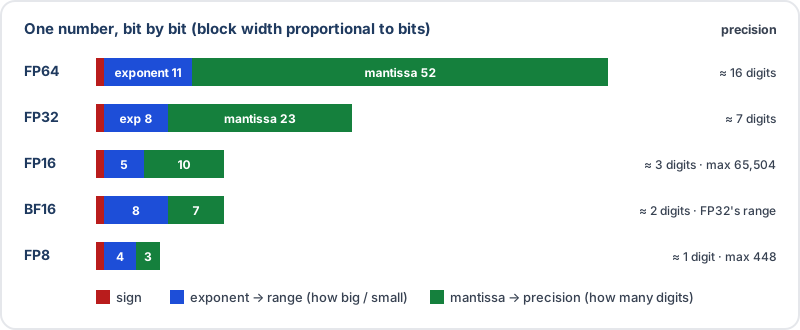
Exponent bits set the range, mantissa bits set the precision. BF16 keeps FP32’s exponent and gives up mantissa.
| Format | Bits | Significant digits | Machine ε | Largest value | Typical use |
|---|---|---|---|---|---|
| FP64 (double) | 64 | ≈ 16 | 2.2e-16 | 1.8e308 | R’s numeric, scientific computing |
| FP32 (single) | 32 | ≈ 7 | 1.2e-7 | 3.4e38 | graphics, deep-learning default |
| FP16 (half) | 16 | ≈ 3 | 9.8e-4 | 65,504 | deep-learning training and inference |
| BF16 | 16 | ≈ 2 | 7.8e-3 | 3.4e38 | deep-learning training |
| FP8 (E4M3) | 8 | ≈ 1 | — | 448 | newest LLM training and inference |
Machine ε is the gap between 1 and the next representable number: in FP32, 1 + 1e-8 is exactly 1. Fewer bits are faster because more numbers move per memory transfer and a short multiplier needs less silicon; going from FP64 to FP16 on tensor cores is a 16–30× speedup.
Why deep learning gets away with it and statistics usually can’t
Deep learning tolerates low precision because:
- SGD is already noisy. In $\theta_{t+1} = \theta_t - \eta,(\nabla L(\theta_t) + \xi_t)$ the minibatch noise $\xi_t$ is a few percent; FP16 rounding is about $10^{-3}$.
- Nobody needs $\hat\theta$ to many digits — flat basins predict equally well.
- Normalisation keeps activations of order 1, where floating point is most accurate.
- Outputs are robust: an argmax or a softmax sample rarely changes under a $10^{-3}$ perturbation.
Where it does break, standard fixes exist — together called mixed-precision training:
| Problem | What goes wrong | Fix |
|---|---|---|
| Underflow | small gradients round to 0 in FP16 | loss scaling |
| Swamping | w + lr*g rounds back to w | keep FP32 master weights |
| Accumulation | long FP16 sums drift | multiply in FP16, accumulate in FP32 |
| Overflow | FP16 tops out at 65,504 | use BF16 |
| Fragile ops | softmax, LayerNorm, loss | compute them in FP32 |
For inference, weights are quantised further (INT8, 4-bit): a 70B-parameter model is 140 GB in BF16 and about 35 GB in 4-bit, and since generating text is limited by memory bandwidth, fewer bytes means more tokens per second.
4. Where Your Files Live
Most clusters give you several storage areas with different trade-offs:
| Typical path | Variable | Typical size | Backup | Use it for |
|---|---|---|---|---|
/home/netid | HOME, ~ | tens of GB | yes (snapshots) | scripts, configs, installed R packages, small results |
/scratch/.../netid | often SCRATCH | hundreds of GB+ | no; may be purged | large regenerable output: MCMC draws, simulation replicates |
/data/project or similar | — | per project | varies | shared datasets; read them in place |
/tmp on each node | TMPDIR in jobs | node-local NVMe | wiped at job end | heavy temporary I/O within a job |
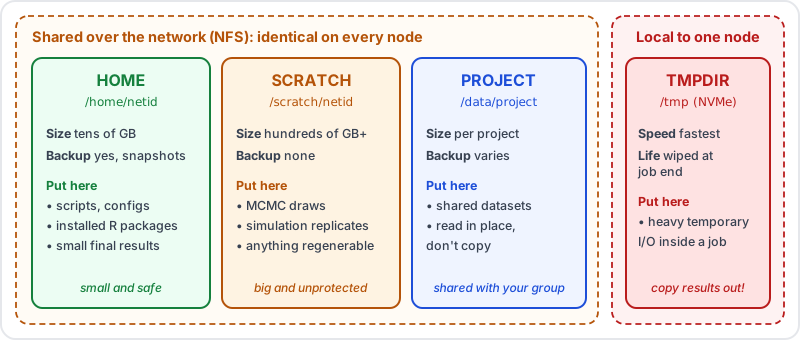
Where files go. Paths are typical; your cluster’s documentation has the real ones.
“Scratch” is an HPC convention (as in scratch paper), not a Linux reserved word; your admins choose the path and usually set the variable in a startup file under /etc/profile.d/.
Quotas count files, not just bytes
Many clusters print something like this at login (or via a command such as showquota or quota):
| |
File Usage counts files. You can hit that limit with plenty of space left — one tiny output file per simulation replicate, or a conda environment with tens of thousands of files. At either limit, every write fails, including inside running jobs.
One copy, seen everywhere
Check where your folders physically live:
| |
Lines of type nfs/nfs4 (or lustre, gpfs) come from a storage server and are identical on every node: a file saved in your home on the login node is instantly visible to your job on a compute node. A line of type xfs/ext4 on /dev/nvme… is the node’s own local disk.
5. Connecting
An SSH host alias, not a shell alias
A shell alias (alias mycluster='ssh netid@cluster.example.edu' in ~/.zshrc) only works when you type it at the prompt; rsync, scp, git and VS Code never see it. An SSH host alias in ~/.ssh/config is read by every SSH-based program, and it can carry options:
| |
- Lines 1–3 are the alias itself.
Control…— the first connection becomes a “master” and leaves a socket file atControlPath(%r,%h,%p= remote user, host, port). Laterssh,scpandrsynccalls ride through it with no new password or two-factor prompt.ServerAliveInterval 60sends a small “still here” message every minute so firewalls and VPNs don’t cut idle sessions.- Recent OpenSSH (10.1 and later) warns when a server lacks post-quantum key exchange;
WarnWeakCrypto no-pq-kexsilences that one warning. Older OpenSSH rejects the option as a “Bad configuration option”, so add it only if you see the warning andssh -Vreports 10.1+.
Setting it up
| |
Passwords do not echo while you type — that’s normal.
What chmod 700 and chmod 600 mean
Unix permissions give three classes — owner, group, others — three rights each: read (4), write (2), execute (1). Each digit of the mode is a sum:
| Mode | Letters | Meaning |
|---|---|---|
| 700 | rwx------ | owner may read, write, enter; nobody else anything (for ~/.ssh) |
| 600 | rw------- | owner may read and write; nobody else anything (for config, private keys) |
| 755 | rwxr-xr-x | typical default for folders: everyone may look inside |
On a folder, “execute” means “may enter”. Why lock SSH files down: whoever can edit your config can add a ProxyCommand that runs commands as you; whoever can read a private key can log in as you. SSH refuses a config file that others can write (Bad owner or permissions) and a private key that others can read.
grep to rg (ripgrep), grep -E fails with unknown encoding — in ripgrep, -E means encoding. Use rg 'pattern' (regex by default) or bypass the alias with command grep -E. type grep tells you which you have.VS Code Remote-SSH
- Install the Remote - SSH extension by Microsoft (
ms-vscode-remote.remote-ssh). It is easy to confuse with “Remote Repositories” or “Dev Containers”, which are different. - Command palette → Remote-SSH: Connect to Host… →
mycluster. It reuses your SSH config. The first time, VS Code installs a server program in~/.vscode-serveron the cluster — several hundred MB of your home quota. - A badge
SSH: myclusterin the bottom-left corner confirms the window runs on the cluster. - File → Open Folder → your project folder, not your whole home: opening home makes VS Code lint its own server files and fill the Problems panel with noise.
- Ctrl-` opens a terminal — on the login node.
Gotcha: the bare bash-5.1$ prompt
If the VS Code terminal shows bash-5.1$ while ssh gives a proper prompt, your account probably has no ~/.bashrc. Bash reads different files depending on how it starts:
| Login shell | Non-login interactive shell | |
|---|---|---|
| Started by | ssh mycluster | the VS Code terminal |
| Reads | /etc/profile, then ~/.bash_profile | ~/.bashrc only |
With no ~/.bashrc, the VS Code terminal loads nothing — no prompt, no aliases, possibly no module command. The standard fix:
| |
Open a new terminal and check that the prompt is normal and type module prints “module is a function”.
6. Shell Essentials
Variables, $ and export
A variable is a name holding text; a dollar sign in front means “substitute the value” before the command runs. So ls $SCRATCH/project runs ls /scratch/netid/project. Names are case-sensitive; capitals for system variables are a convention.
| |
Every program you start — R, Python, a Slurm job — is a child process and receives only exported variables. export moves a variable into that set; env lists them. That is why R’s Sys.getenv("PROJ") returns "" unless you exported it.
Quoting
| |
An unclosed quote leaves a > continuation prompt; Ctrl-C gets you out.
Small commands worth knowing
| Command | What it does |
|---|---|
mkdir -p a/b c | create folders, including parents; silent if they exist, so safe to re-run |
ls -d a c | list the folders themselves, not their contents |
ll | on many Linux systems a built-in alias for ls -l; add -a for hidden files |
du -sh ~/* | sort -h | size of each folder in home, sorted |
ln -s TARGET NAME | a shortcut (symbolic link) pointing at TARGET |
type NAME | is NAME an alias, a function, or a program? |
Unix commands are silent on success. Aliases from your laptop (eza, zoxide’s z, …) don’t exist on the cluster; plain aliases in ~/.bashrc such as alias cdp='cd ~/project' cover the few places you visit.
7. Software: Modules
On a cluster, almost nothing is on your PATH by default — which R typically finds nothing. Many versions are installed side by side, and the module system lets you choose:
| Command | What it does |
|---|---|
module spider R | search every installed module for R; loads nothing |
module spider R/4.4.1-gfbf-2023b | details for one version: how to load it, prerequisites |
module avail | only what can be loaded right now |
module load R/4.4.1-gfbf-2023b | load it (case-sensitive, full name) |
module list | what’s loaded |
module purge | unload everything — first line of every batch script |
“Spider” as in web crawler: it crawls the whole module tree, including modules that only become loadable after a prerequisite such as a compiler is loaded. module load just edits PATH and library paths for the current shell.
Reading a module name. In R/4.4.1-gfbf-2023b, 4.4.1 is the R version and gfbf-2023b is the toolchain it was built with (on EasyBuild-managed clusters, gfbf = GCC + FlexiBLAS + FFTW; foss adds MPI). The “Other possible modules matches” list that spider prints is a loose name match, not a list of R packages — but skim it for useful things like RStudio-Server or JupyterLab.
- Match your laptop’s minor version (4.3, 4.4, 4.5). R keeps a separate package library per minor version, and matching keeps package versions and numerics aligned.
- Prefer a build that has a matching
RStudio-Servermodule, if you’ll want RStudio. - Pick one R module per project and use it everywhere.
Check what the module already ships before installing anything:
| |
If .libPaths() lists only a system folder, your first install.packages() will offer to create a personal library in your home folder — say yes.
8. Running Work with Slurm
An interactive session, flag by flag
| |
| Flag | Meaning |
|---|---|
--partition=short | the queue; names and limits vary — sinfo and scontrol show partition list them |
--ntasks=1 | run one copy of the command (see the gotcha below) |
--cpus-per-task=4 | 4 Slurm CPUs — which may be only 2 physical cores |
--mem=8G | RAM limit; exceed it and the job is killed (“OOM”) |
--time=02:00:00 | wall-clock limit; the job is killed when it runs out |
--pty bash -i | attach your terminal and start an interactive shell |
When the prompt changes to a compute node’s name, you’re in; hostname confirms. Afterwards, sacct -j JOBID (or your site’s jobstats/seff) shows what the job actually used, so you can size the next request.
Slurm may round you up to whole cores
Run scontrol show config | grep SelectTypeParameters. If it says CR_Core… and nodes have 2 threads per core, Slurm hands out whole cores: requesting 1 CPU gives you 1 core = 2 CPUs, requesting 3 gives you 2 cores. This isolates jobs — two users never share a physical core, which keeps timings predictable and avoids side-channel leaks between threads. For 16 cores’ worth of dense numerics, request 32 CPUs.
On a cluster that rounds up to whole cores, srun --cpus-per-task=1 hostname can print the hostname twice: Slurm allocated 2 CPUs, and with no --ntasks it may launch one task (one copy of the program) per allocated CPU. Tasks exist for MPI programs that cooperate; for an R script, two copies means duplicated work and two processes writing the same output file. Always pass --ntasks=1, and put #SBATCH --ntasks=1 in batch scripts. Test your own cluster:
| |
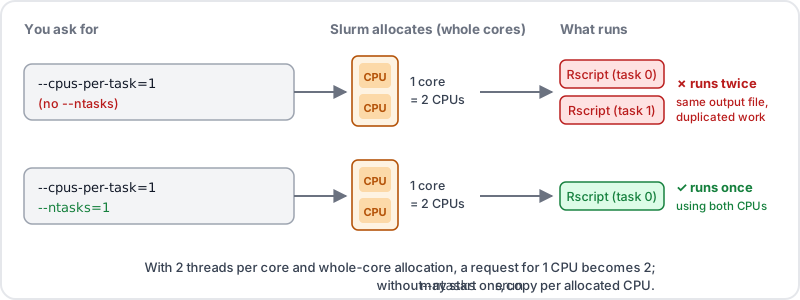
Why –ntasks=1 matters on clusters that allocate whole cores.
Batch scripts
A batch script is a bash script whose #SBATCH lines are resource requests. Slurm runs the body once, on the first node of the allocation:
| |
Submit with sbatch test.sh, watch with squeue -u $USER, follow output with tail -f logs/test_*.out. Ordinary lines run once; only a line prefixed with srun inside the script launches a job step that may run several copies.
logs/ doesn’t exist, the job dies before running and leaves no log, so you can’t see why. Run mkdir -p logs once in the folder you submit from.screen: keep interactive sessions alive
The srun client for an interactive session runs on the login node and is the job’s lifeline. If your laptop sleeps or Wi-Fi drops, the SSH connection dies, srun dies, and Slurm ends your job. screen (or tmux) sits upstream of srun on the login node and survives the drop:
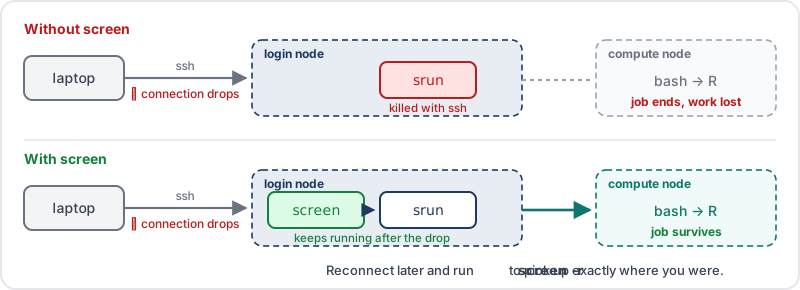
screen protects the srun client on the login node, so the job on the compute node survives a dropped connection.
Running screen on the compute node wouldn’t help: you only reach the compute node through srun, which lives on the login node. And screen itself is a light text relay, so it’s fine on the login node.
| Keys / command | Action |
|---|---|
screen -S work | start a session named “work” |
| Ctrl-a, then d | detach — leave it running |
screen -ls / screen -r work | list sessions / reattach |
| Ctrl-a c, Ctrl-a n | new window inside the session, next window |
exit | end the session for good |
The name comes from GNU Screen, a “screen manager” that keeps several virtual terminal screens inside one window.
Putting it together: installing an R package
| |
| |
Packages with large C++ dependencies can take many minutes to compile. If the download fails, compute nodes may have no internet access — ask your cluster’s help desk. When done: q(), then exit to free the node, then exit again to close screen.
Which way to run R
Terminal R (screen + srun) | RStudio Server / Jupyter (batch job + SSH tunnel) | sbatch + Rscript | |
|---|---|---|---|
| Setup | none | a job script, once | a job script per analysis |
| Plots and IDE | no — save PNGs | full IDE in the browser | none |
| Survives disconnects | yes, with screen | yes | yes |
| Best for | installing packages, quick checks | exploration, EDA, plotting | long MCMC runs, simulations |
RStudio Desktop on your laptop cannot use the cluster’s CPUs. Whatever holds an interactive allocation holds it while you’re idle too — exit when done.
Cheat Sheet
| |
Rules of thumb
- Never compute on the login node — VS Code terminals and notebook kernels opened there count.
- Always
--ntasks=1for non-MPI work; Slurm “CPUs” may be half-cores. - Scripts in home, big regenerable output in scratch, shared data read in place.
module purgeat the top of batch scripts; keepmodule loadlines out of~/.bashrc.mkdir -p logsbefore your firstsbatch.- Stay in FP64 for likelihoods and Cholesky factors.